 SkillBamboo
You have a story for an AI cartoon with consistent characters in mind, and the first scene looks great. Then in the second one your hero shows up with a new face and a different outfit. Stretch that over a few minutes and it no longer feels like one film. The fix is a five-step pipeline: script and scenes, characters, scene images, clips, edit. Follow it and you'll end up with a cartoon from one to ten minutes long, stitched together from short clips, with the same characters in every scene – made with a chatbot, an image and video generator and a free editor.
Why AI cartoon characters change faces, and how the process works
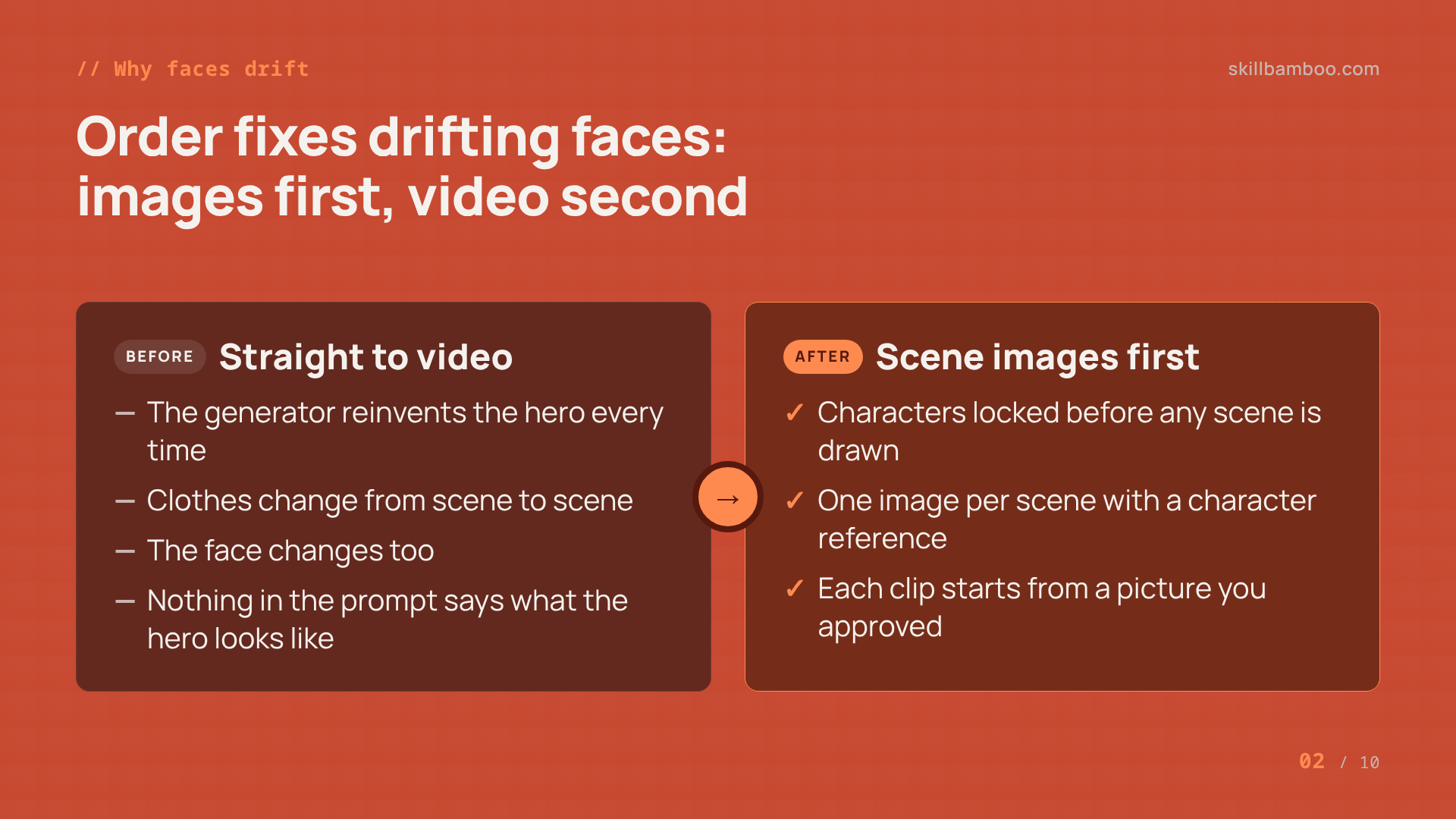
If you go straight to video without preparing your characters, the generator reinvents the hero every time. Their clothes change from scene to scene, and so does their face. That's not bad luck. Nothing in the prompt actually tells the model what the character is supposed to look like.
So the fix is mostly about order. Make the scene images first and turn them into video only afterwards. Each clip then starts from a picture where the character already looks right.
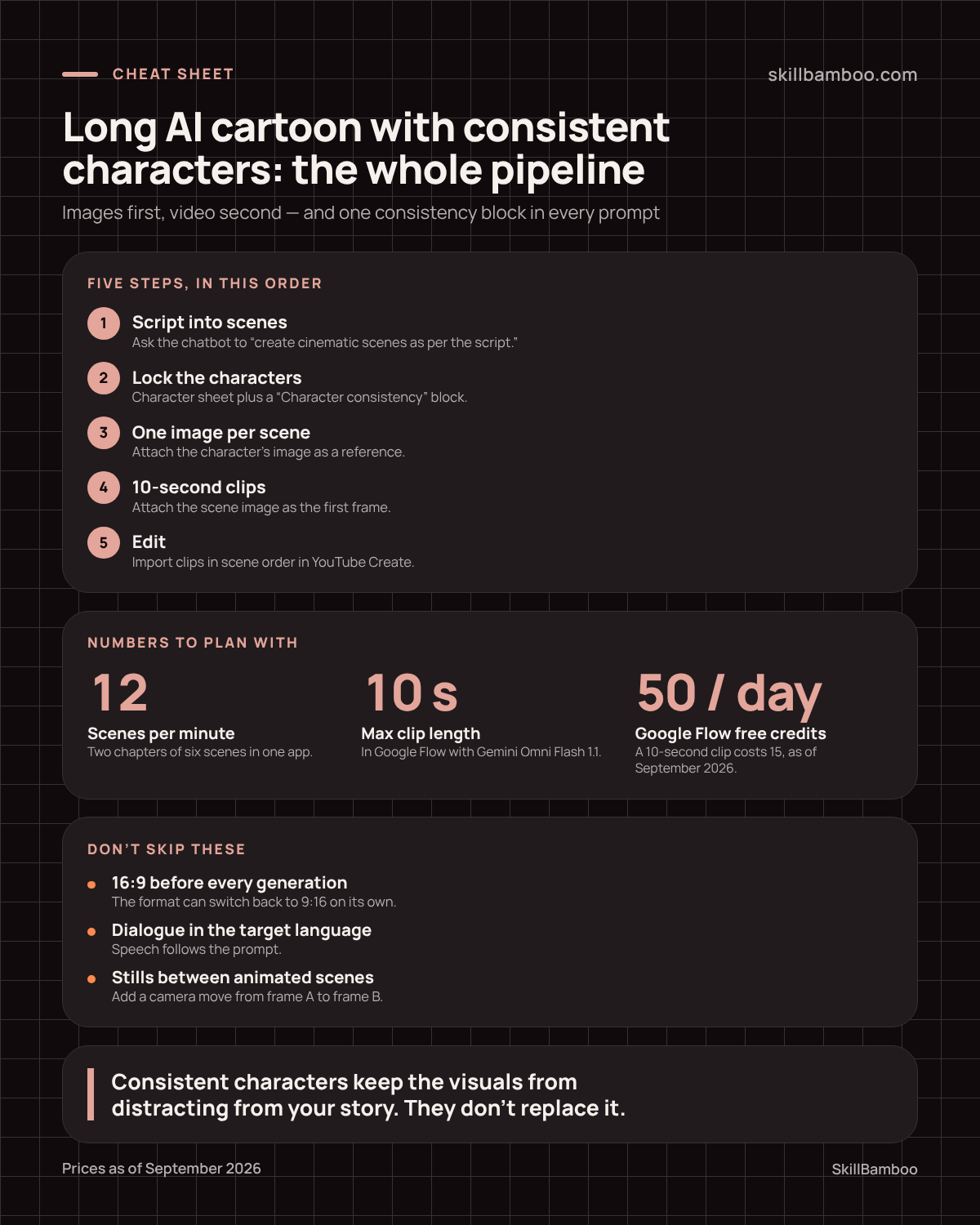
The usual setup is scattered: you write the script in one tool and generate images in another. That's OK, as long as you keep to one sequence:
- Script, then a list of scenes.
- Characters, locked before any scene is drawn.
- One image per scene, made with character references.
- Short video clips made from those images, so each clip starts from a picture you already approved.
- The edit.
One caveat before you start: perfect consistency isn't what makes a cartoon work. In the viral AI cartoon The Mother's Monster, the dragon looks small in some scenes and towers over everything in others. People watch it anyway, because the story holds it together. Think of consistent characters as a way to stop the visuals from distracting from your story. They don't replace it.
Step 1. Write the script and break it into scenes
Start with the story itself, written with a chatbot or by hand. Then send a separate request that turns the finished story into scenes:
create cinematic scenes as per the script
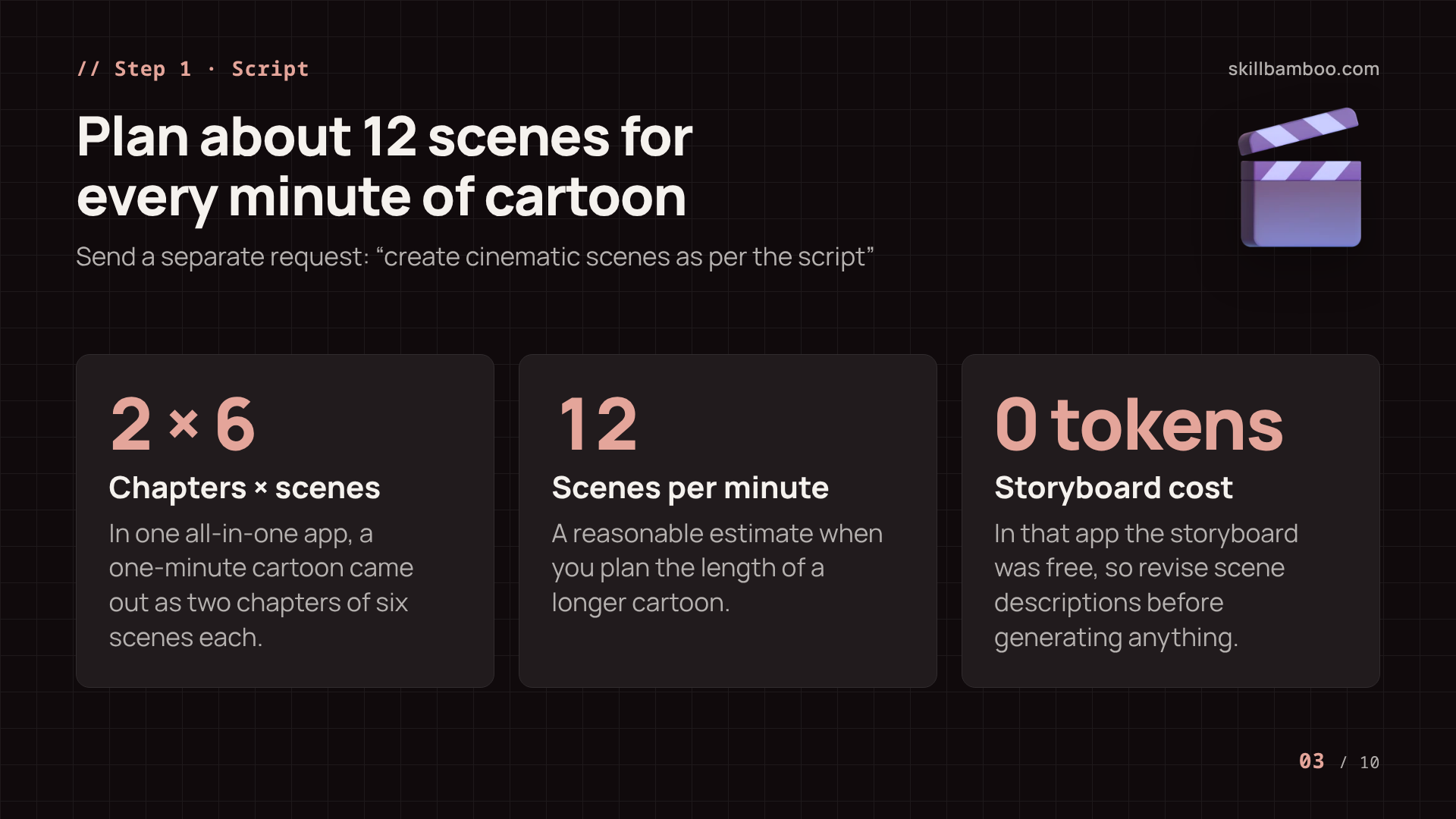
Plan for length early. In one all-in-one cartoon app, a one-minute cartoon came out as two chapters of six scenes each, so 12 scenes per minute is a reasonable estimate. The storyboard (a description of every scene) cost zero tokens to generate there. In other words, you lose nothing by revising it several times.
Read every scene description before you generate anything, and edit it where needed. Say your hero sits alone by the road in a scene, but you want his wife sitting beside him. Add that to the description and she'll appear in the frame. It's worth fixing text now, because it's much cheaper than regenerating images and clips later.
What you want in hand now: a numbered list of scenes, each with a short line on who's in it and what happens.
Step 2. Lock your characters with a character sheet before the first frame
This is the step that decides whether your cartoon holds together. Generate every character in the story before you make a single scene image.
The most useful format is a character sheet – one image showing the character from every angle. It becomes the reference for all later scenes, so the generator always has the same face, body and outfit to work from.
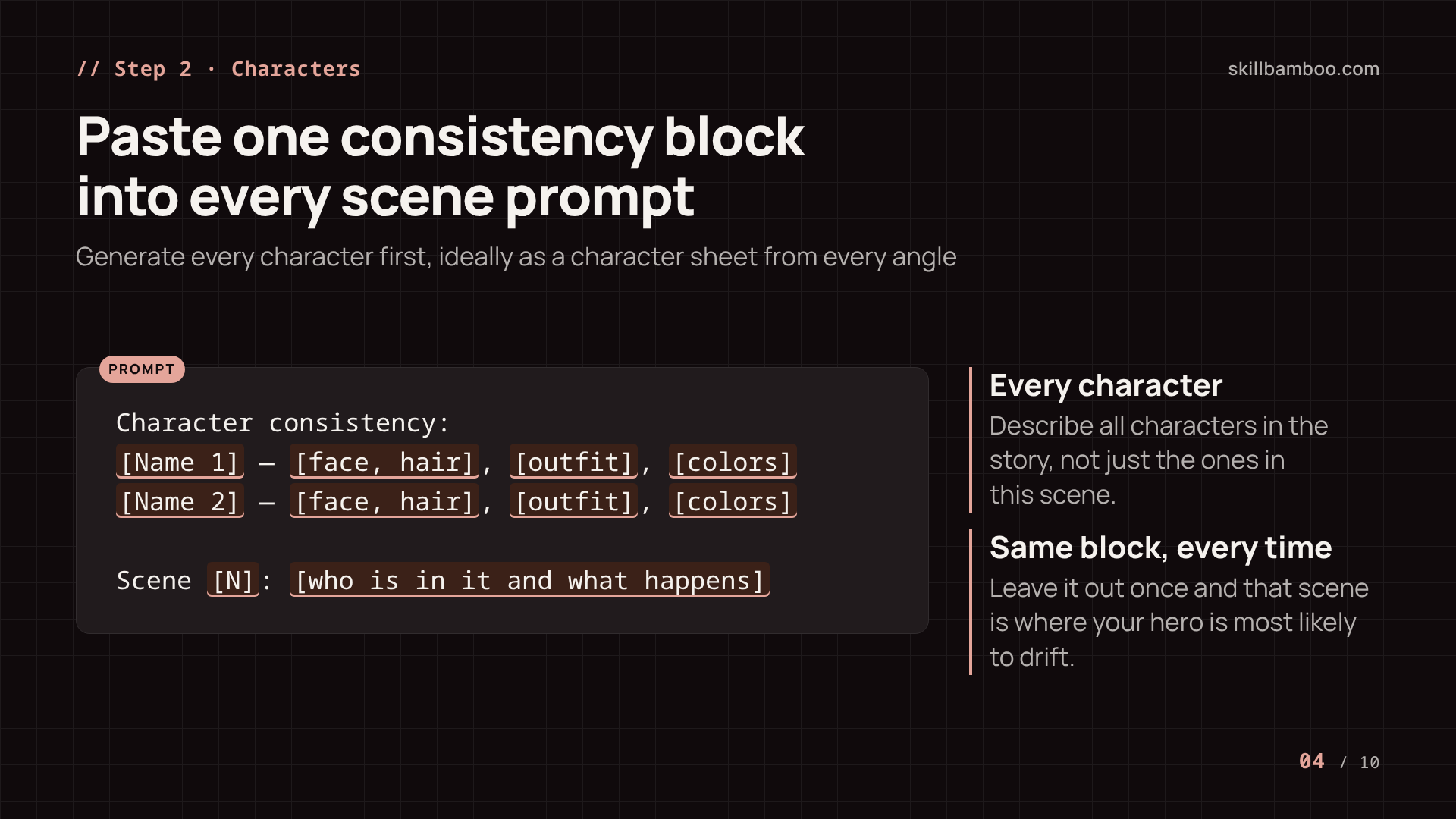
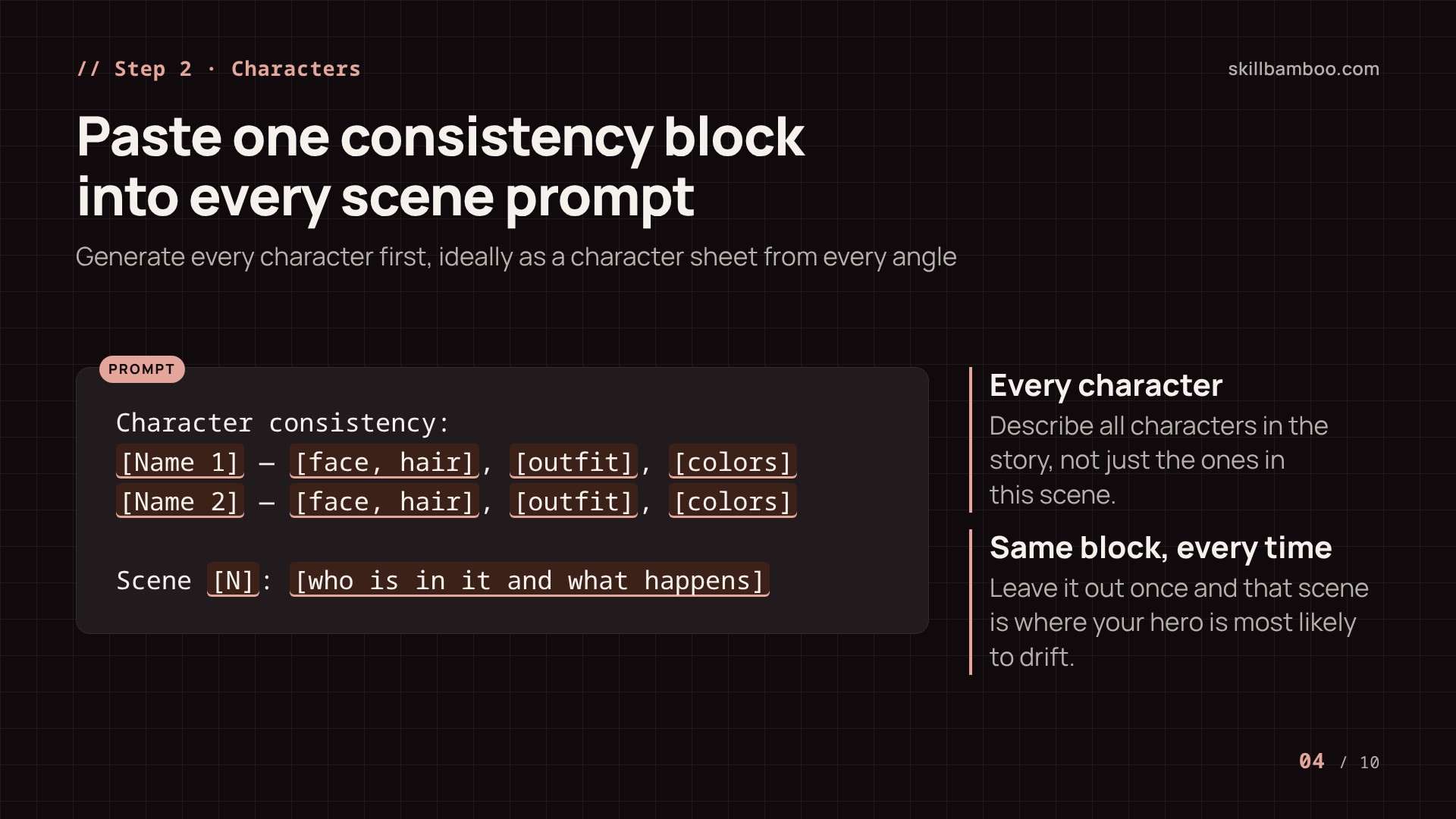
Next, write a text block that describes all the characters (appearance, clothing, colors) and title it “Character consistency.” You'll copy this entire block into the prompt for every scene, along with that scene's own description. It keeps the images from drifting: the heroine wears the same-colored clothing and the same outfit in every frame instead of a new dress each time.
Two anchors, every scene
Each scene prompt needs both the full “Character consistency” block and the scene description. Leave out the block even once, and that scene is where your hero is most likely to drift.
The good news is that characters cost little compared with video. In the all-in-one app, generating four characters cost five tokens in September 2026, and the price grows with the number of characters. But keep the cast small: every extra character is another face to keep consistent.
Step 3. Generate scene images with character references
Now make one image per scene. The order still matters here: images first, video later.
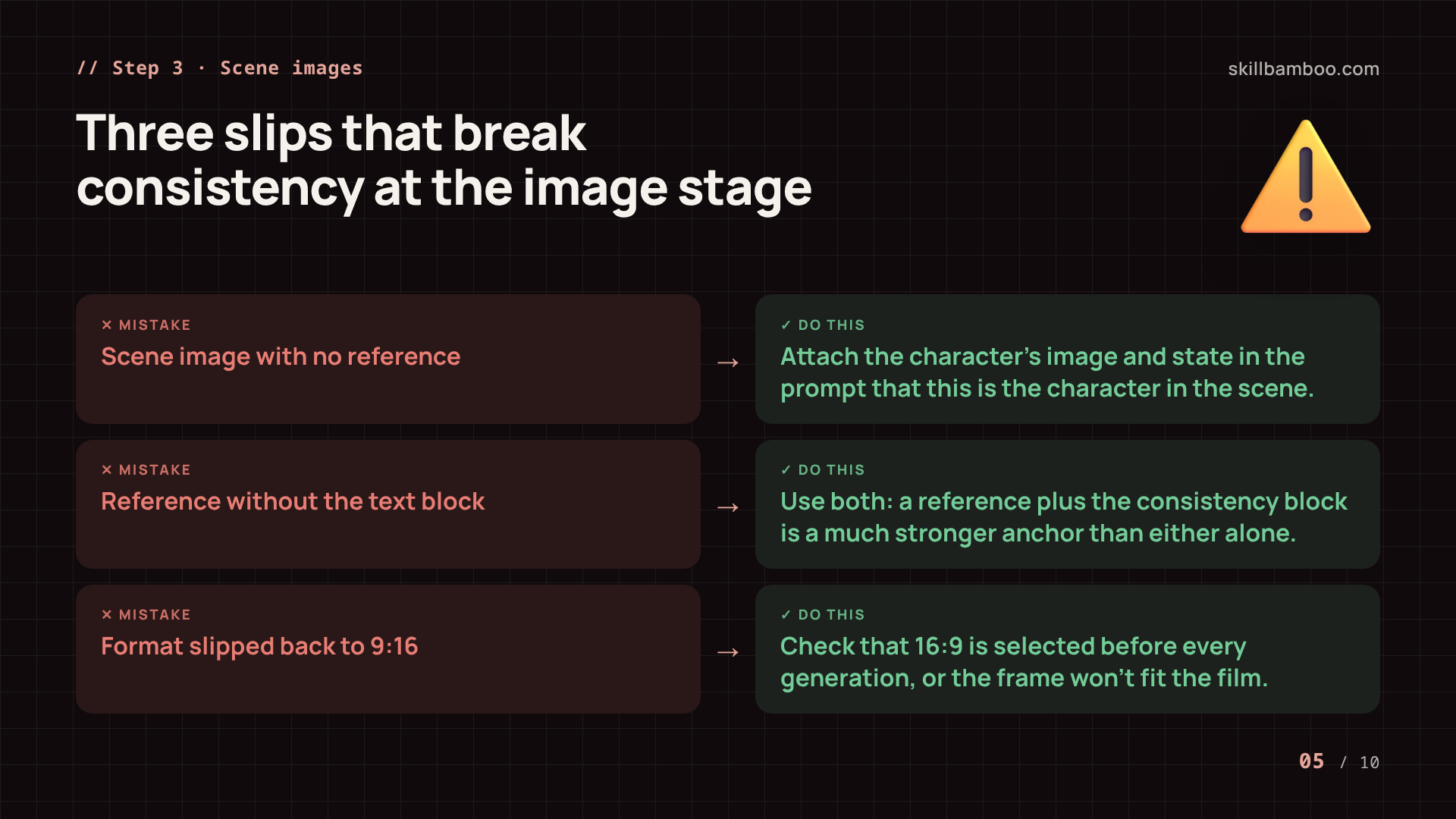
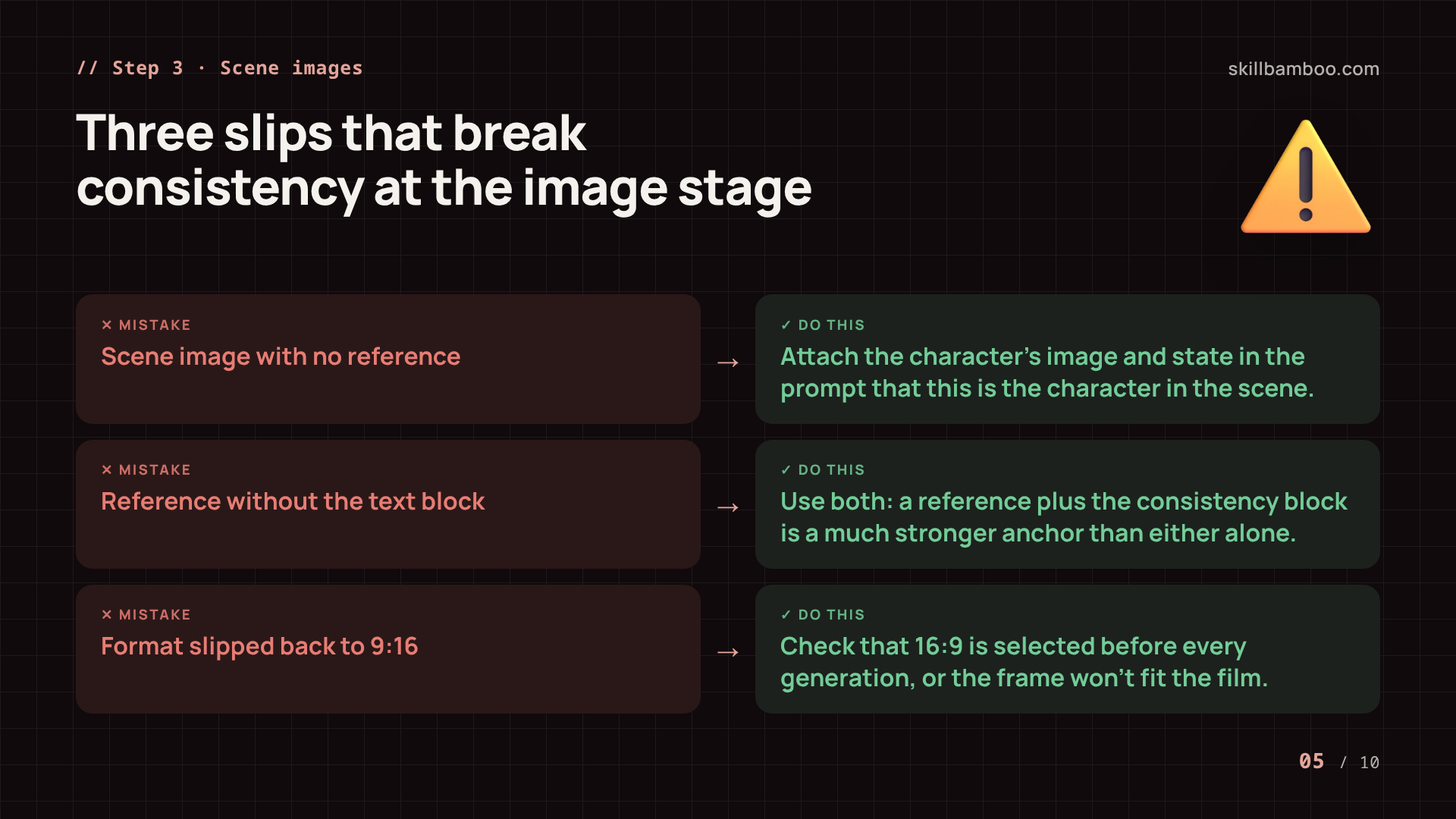
Attach the character's image to every scene and state in the prompt that this is the character in the scene. When you give the generator references – both the characters and the background – the characters come out the same in every scene. A reference plus the consistency block is a much stronger anchor than either one alone.
Images are still cheap. For the 12 scenes of a one-minute cartoon, one image per scene, the all-in-one app charged 24 tokens in total in September 2026. So use that budget to regenerate any scene where the hero looks off, before it turns into a clip.
Check the aspect ratio every time
In some generators the format quietly switches back to vertical 9:16. Make sure 16:9 is selected before every generation, or you'll get a frame that doesn't fit the rest of the film.
So now you've got a folder of scene images, numbered in story order, with the same characters in each one.
Step 4. Animate scenes as 10-second AI video clips
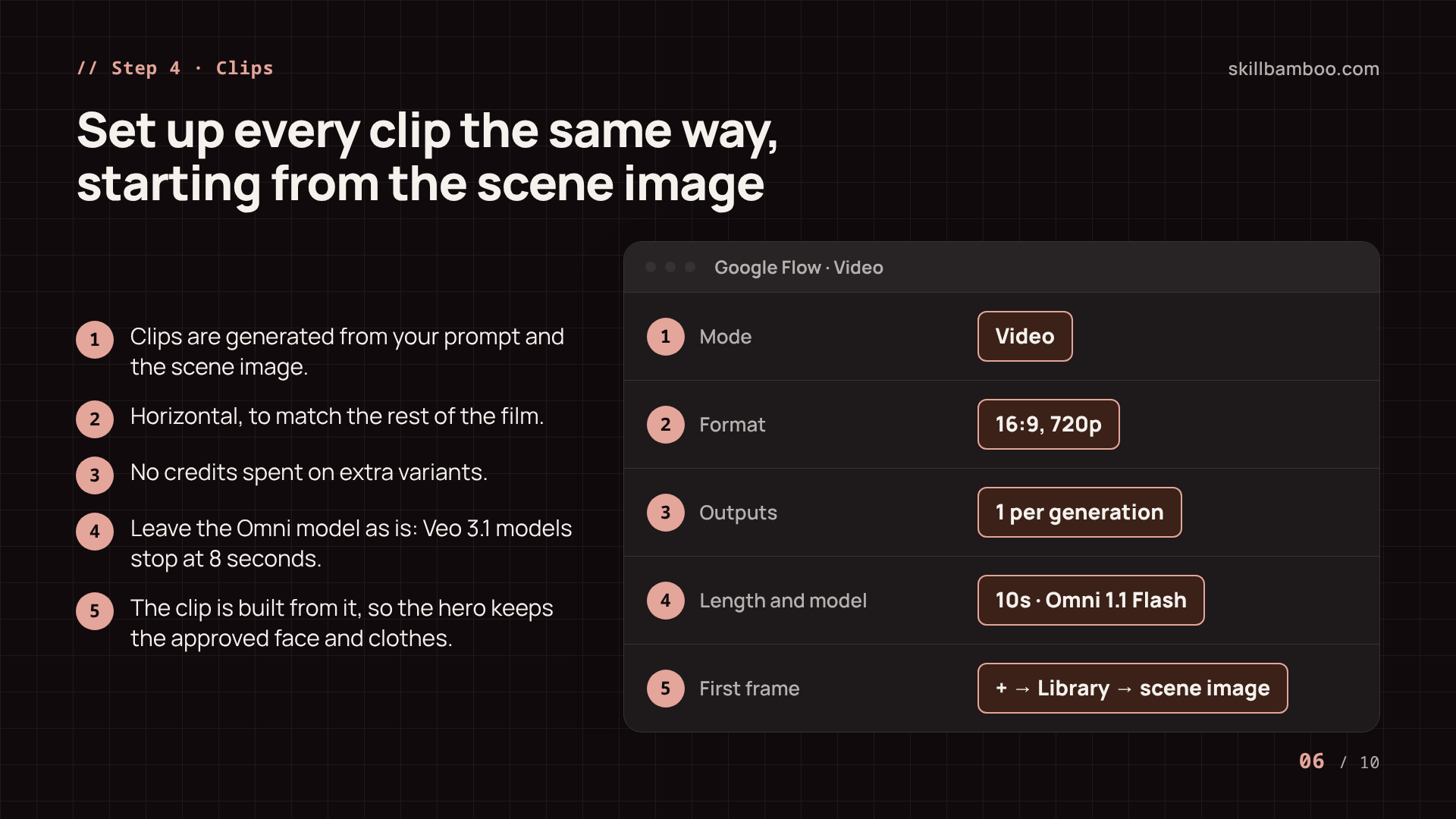
Video generators don't make long films in one go. In Google Flow, each generation gives you a clip of up to 10 seconds with the Gemini Omni Flash 1.1 model (Veo 3.1 models stop at 8 seconds), so a long cartoon is always put together from many clips at the end.
Go back to the chatbot that wrote your story. Ask it for video prompts for that story, with dialogue included, and have it split every scene into 10-second segments. You end up with one prompt per clip.
In the video generator (Google Flow is one option), set up each clip like this:
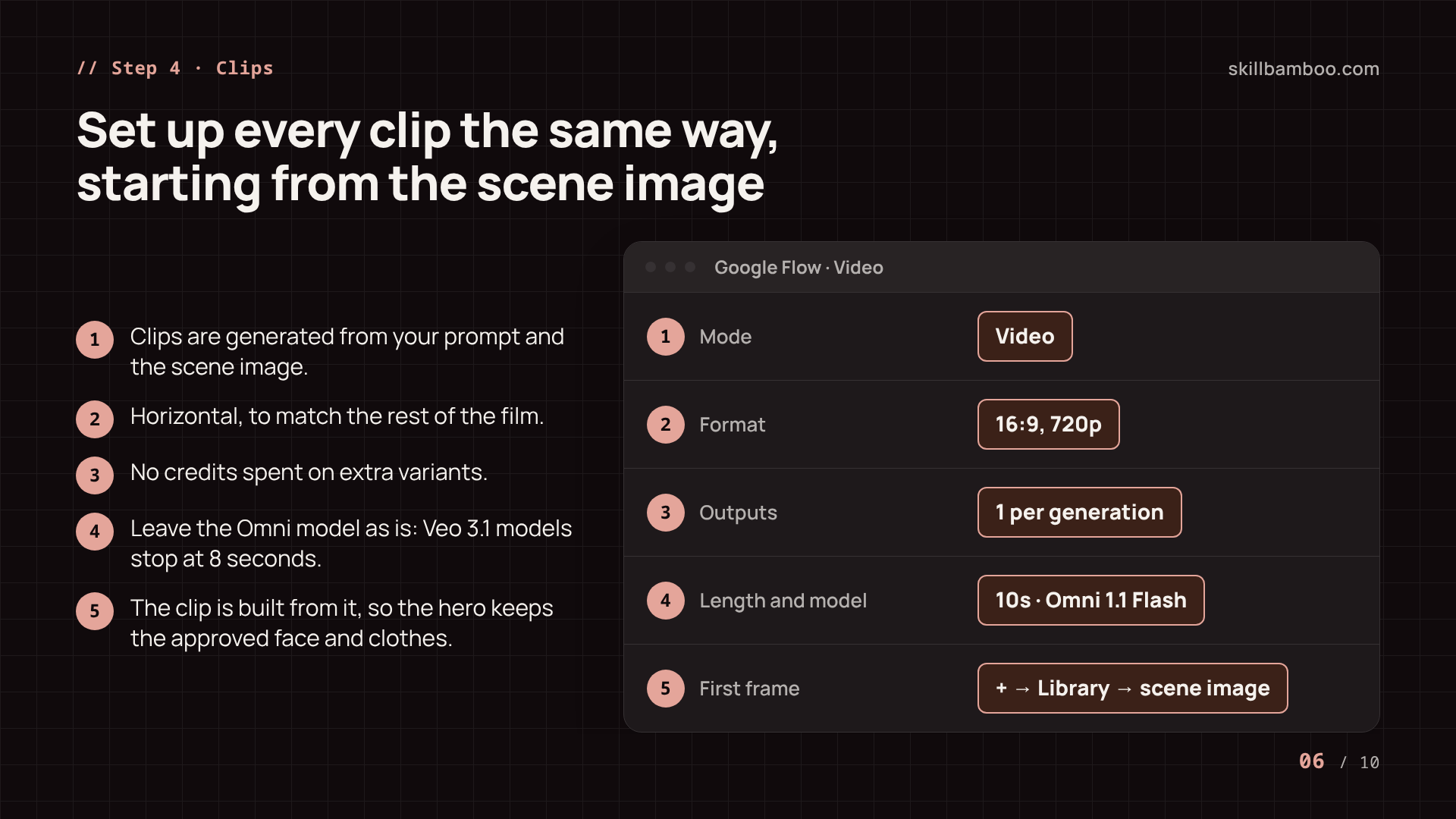
- Choose Video mode.
- Pick the horizontal 16:9 format and 720p.
- Set one output per generation, pick 10s for the length and leave the Omni 1.1 Flash model as it is.
Then attach the finished image for that scene through +→Library and select it as the first frame. The clip is built from your image, so the character keeps the face and clothes you already approved.
Learn about Google Flow models & supported features – Google Flow Help – Flow models, clip lengths and start frames
Watch the language of the dialogue. Speech follows the prompt: a prompt written entirely in English produced English speech even though the story was meant to be in another language. If your characters should speak another language, paste the lines in that language into the prompt explicitly.
Clips are where the budget goes
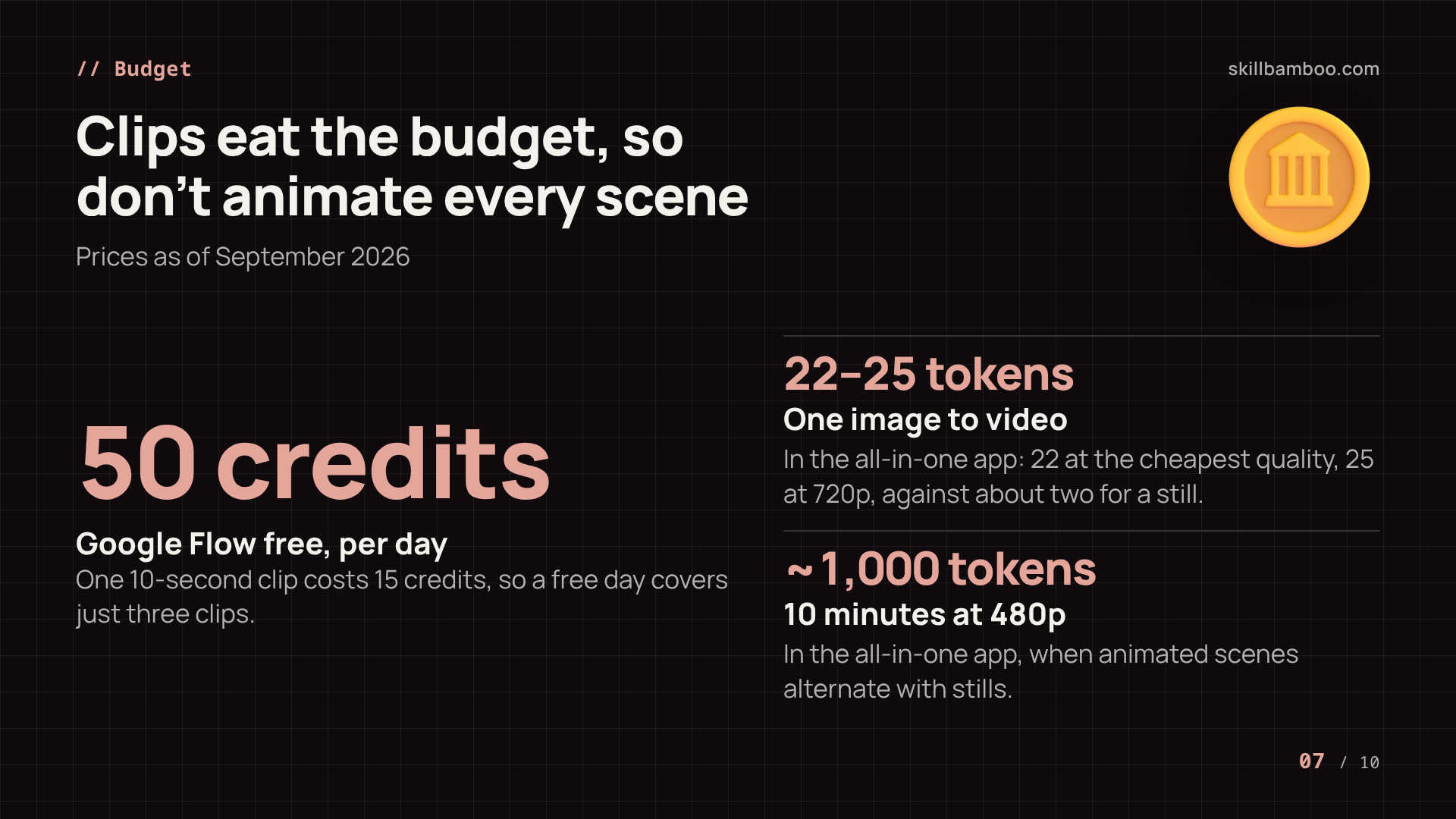
As of September 2026, Google Flow's free access gives 50 credits a day, and one 10-second clip costs 15 credits – so a free day covers just three clips, 45 of the 50 credits. In the all-in-one app, turning one image into video cost 22 tokens at the cheapest quality and 25 tokens at 720p, against about two tokens for a still image.
The cheapest trick is to just not animate everything. Alternate animated scenes with still images: the first scene moves, the second and third are stills, then animation again. Done this way, a 10-minute video at 480p fits within roughly 1,000 tokens in the all-in-one app.
Step 5. Stitch clips and add camera moves
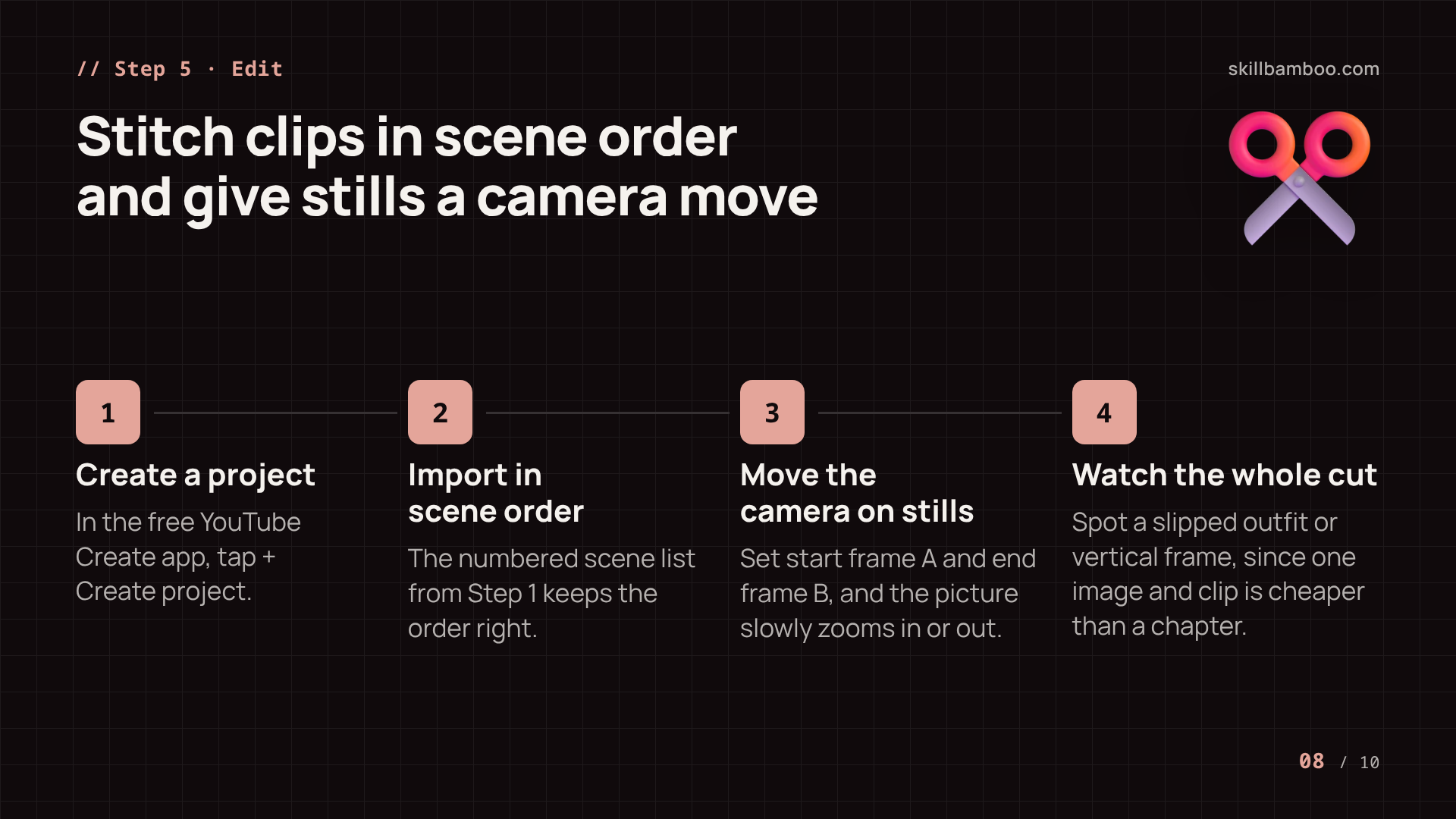
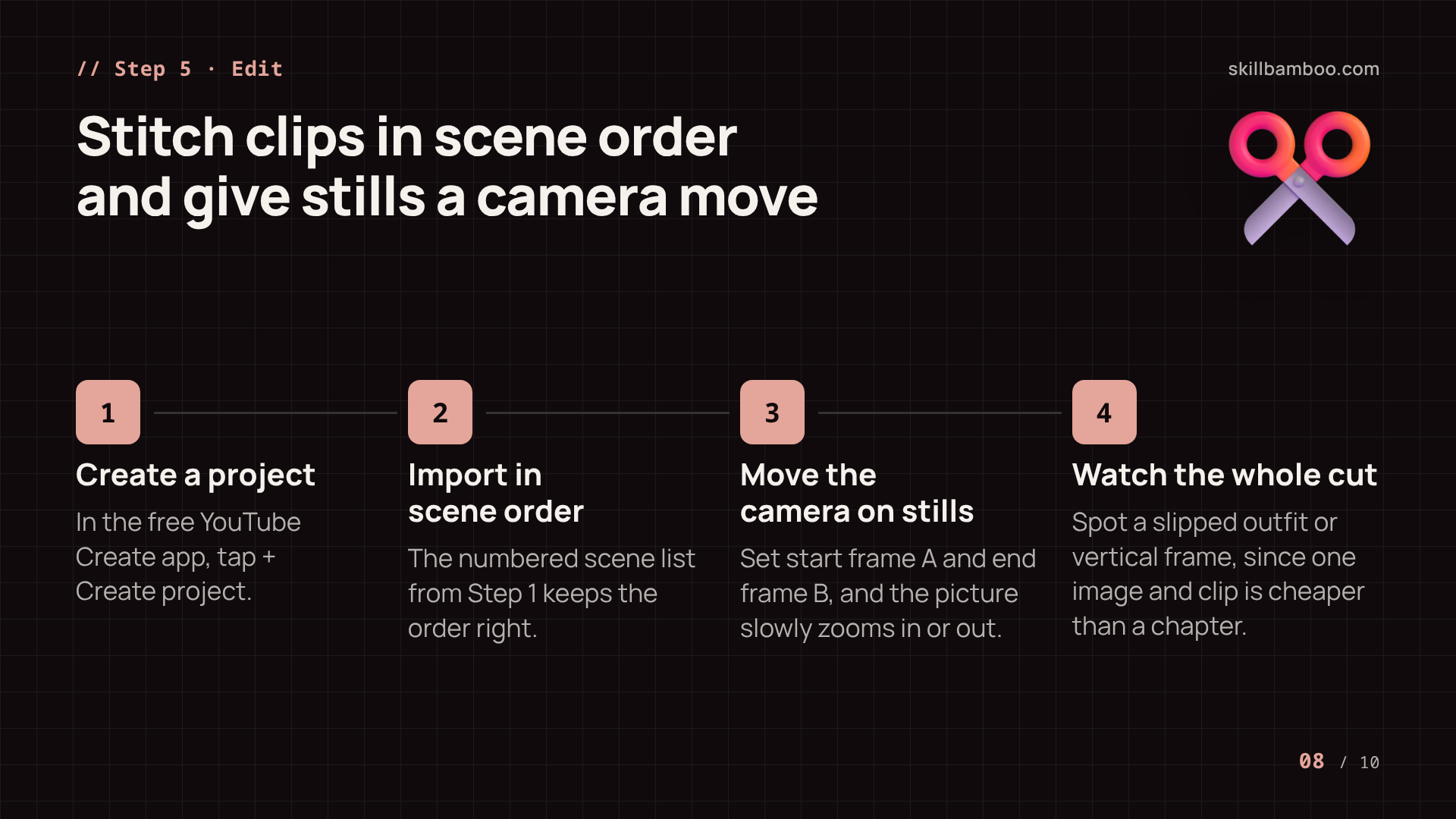
Once the clips are ready, put them together in an editor. The free YouTube Create app does the job: tap + Create project and import the clips in scene order. Since the scene list from Step 1 is numbered, keeping the order right is simple.
Learn more about YouTube Create – YouTube Help – YouTube's free mobile video editing app
Still scenes shouldn't look frozen. Give them a camera move: in the editor, open the camera setting on the image and adjust its start frame A and end frame B. The picture then slowly zooms in or out across the scene, which is often enough to make a still feel like part of the animation.
Just watch the whole cut from start to finish before you publish. That's when you'll spot the one scene where a character's outfit slipped or the frame came out vertical. Regenerating a single image and clip is far cheaper than redoing a chapter.
Key terms
- Character consistency – Keeping a character's face, clothes, and colors the same across every scene of a video.
- Character sheet – An image showing a character from several angles, used as the reference for their look in all scenes.
- Reference image – A finished picture of a character or background attached to a generation so the AI reproduces it.
- Storyboard – A list of the video's scenes describing what happens and where in each, used to generate the images.
- Consistency block – The same text describing all characters, pasted into the prompt for every scene.
- Credits (tokens) – An app's internal currency: each image or video clip uses up a set amount.
Wrap-up: checklist for a long cartoon with consistent characters
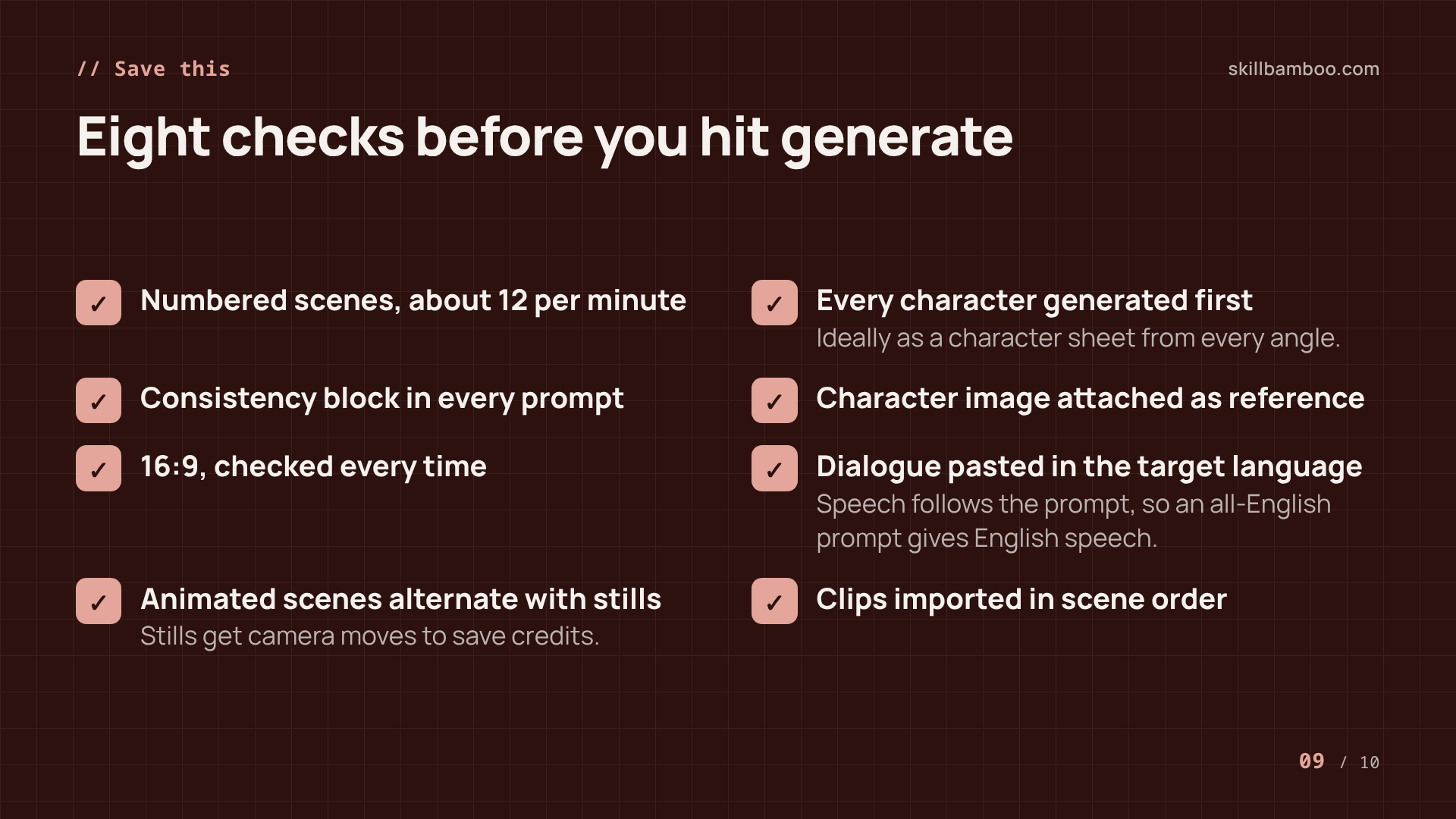
Here's what to run through before you hit generate:
- The script is split into numbered scenes, about 12 per minute of video.
- Every character is generated first, ideally as a character sheet from every angle.
- The “Character consistency” block is pasted into every scene prompt.
- Each scene image is generated with the character's image attached as a reference.
- 16:9, checked every time.
- Dialogue is written in the language your characters should speak, pasted into the prompt explicitly rather than left to the generator.
- Animated scenes alternate with stills plus camera moves to save credits.
- Clips are imported into the editor in scene order.
Don't chase perfection at the expense of the story. The Mother's Monster cost about $750 to make, and it went viral on its plot, not on a dragon that stays the same size.
Summary
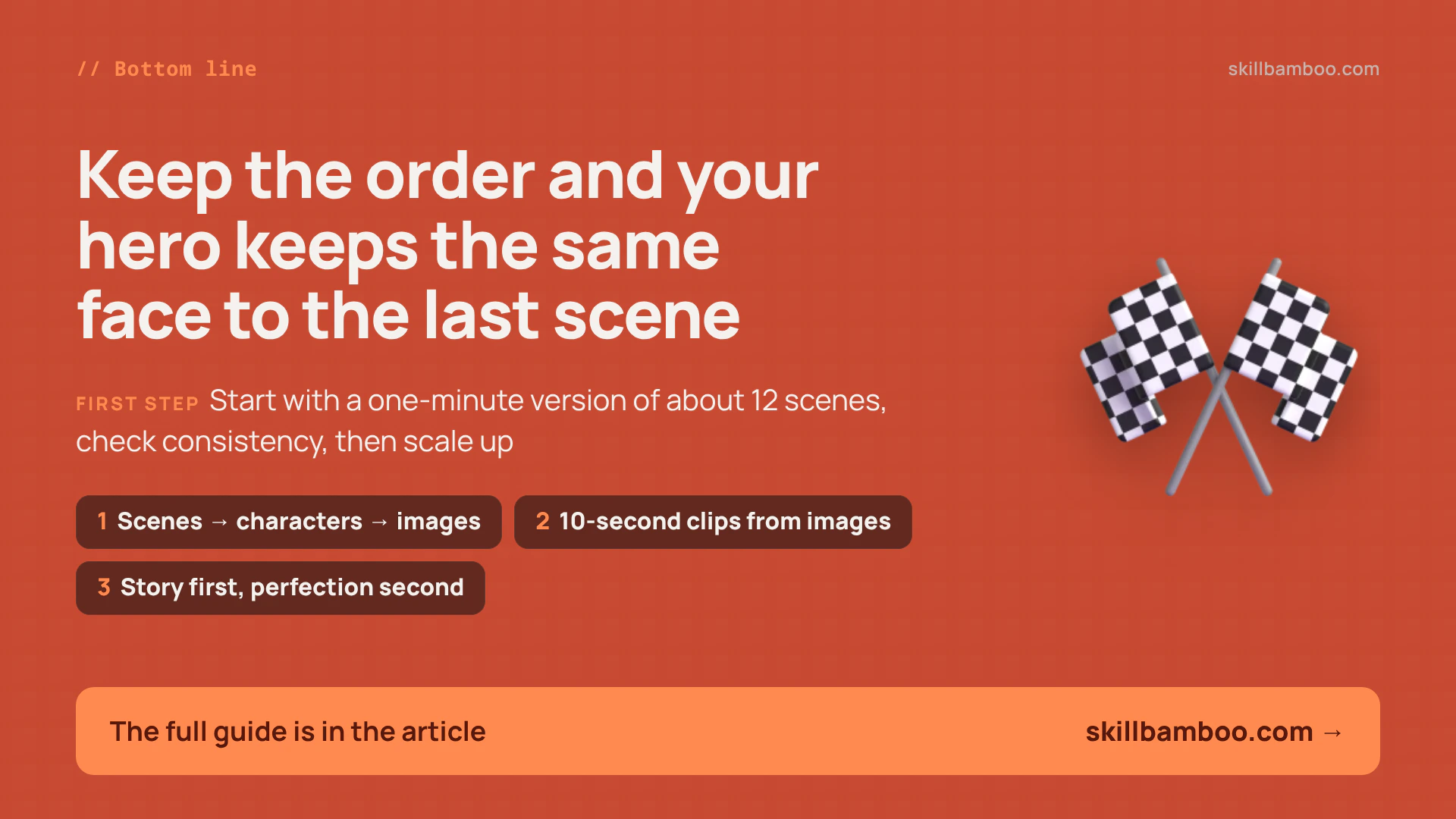
A long AI cartoon is a pipeline: scenes from the script, characters locked first, scene images with references, 10-second clips made from those images, and an edit at the end. Keep that order and your hero keeps the same face and clothes from the first scene to the last. Start with a one-minute version of about 12 scenes, check consistency, and only then scale up to longer stories.
Check yourself
1. You generated five clips in a row from text prompts, and your hero has a different face in each. What fixes this best?
- A. Raise the video quality to the maximum
- B. Shorten the prompt so the AI doesn't get confused
- C. Make a character sheet and scene images first, then generate each clip from its image
Show answer
Answer: C. When video starts from a finished frame with a locked character, the generator doesn't have to reinvent the look.
2. What should every scene prompt contain so the heroine's outfit doesn't change?
- A. A style name like “Ghibli style” – that's enough
- B. Only the description of that scene
- C. The scene description plus the same block describing all characters
Show answer
Answer: C. A consistency block repeated word for word gives the characters the same look in every scene.
3. Your generator makes clips of up to 10 seconds. How do you make a 3-minute cartoon?
- A. Split the script into 10-second segments, generate a clip for each, and merge them in an editor
- B. Set the duration to 3 minutes in the settings
- C. Generate one clip and slow it down
Show answer
Answer: A. Long videos are always assembled from short clips, so the 10-second split is planned at the script stage.
4. Your clip came out, but the characters speak the wrong language. What's the likely cause?
- A. The aspect ratio was set to 16:9
- B. The video prompt was written in another language and didn't include dialogue in the target language
- C. The scene image was attached from the library
Show answer
Answer: B. Speech follows the prompt, so dialogue in the right language has to be pasted in explicitly.
5. Your generation budget is small. Which approaches stretch it across a long video? (Select all that apply.)
- A. Generate several versions of every clip and pick the best
- B. Alternate animated scenes with still images that use a camera move
- C. Generate video at the lowest quality – for a cartoon it's usually enough
Show answer
Answer: B, C. B – Animation is the expensive part; a still with a slow zoom costs almost nothing and still feels alive. C – Low-resolution clips cost fewer credits, and drawn visuals lose little from it.